DOWNLOAD THE LATEST FIRMWARE UPDATES

Extend the value of your purchase for free

Firmware updates package are only supported via Windows PC.

If your device version is very low, it is recommended that you update it level by level, otherwise an error may be reported.

For some devices, updates will be provided directly via the OTA function of the EJEAS APP, and this page will no longer be updated.

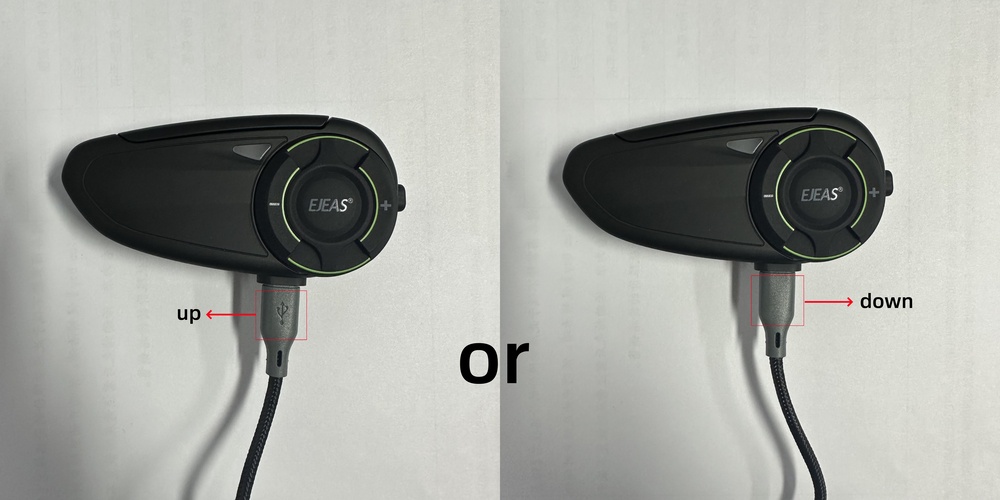
Note: If your device fails to be recognized when connected to your computer and displays the message “ERROR: Can not find device, please check usb connection“, don’t worry. Simply flip the data cable over and reinsert it to restore the normal connection.

Product

Motorcycle intercom

Referee intercom

Ski intercom

Note: The Chinese version does not support changing to other language voice prompts.


S2 Snow Eagle Firmware Update

Download 1.12.0

Note: You must activate it in the EJEAS APP for the first time before you can use Mesh intercom and FM function. Download the reference tutorial

  1. Use Type-C USB data cable to connect S2 Snow Eagle Bluetooth headset to computer
  2. Open the EJEAS Upgrade.exe tool on the computer
  3. Click the Upgrade button and wait for the upgrade to complete

PS:If it shows that it cannot be connected, please try to replace the Type-C USB data cable or contact the computer supplier/maintenance personnel to update the USB HID driver

1.12.0

Update time: 2026-01-13

Fixed – Fixed the issue of excessive power consumption.
Added – Added OTA functionality and related processes, supporting both BT and DSP OTA upgrades.
Adjust – Updated some app features to adapt to the new app.

X10 Phantom Firmware Update

Download 1.5.0

Note: You must activate it in the EJEAS APP for the first time before you can use Mesh intercom and FM function. Tutorial video link: https://www.youtube.com/watch?v=7ubHsr0XN-I or Download the reference tutorial

  1. Use Type-C USB data cable to connect X10 Phantom Bluetooth headset to computer
  2. Open the EJEAS Upgrade.exe tool on the computer
  3. Click the Upgrade button and wait for the upgrade to complete

PS:If it shows that it cannot be connected, please try to replace the Type-C USB data cable or contact the computer supplier/maintenance personnel to update the USB HID driver

1.5.0

Update time: 2025-10-20

Fix – Fixed the issue where the device would still shut down after three minutes following temporary activation during factory testing.
Fix – Fixed the issue where the indicator light wouldn’t illuminate when plugged in for charging while not activated.
Fix – Fixed the issue where the device wouldn’t reconnect to the app after activation via the new activation process.
Fix – Fixed the issue where the device wouldn’t reconnect to the app after shutting down and then restarting.
Adjust – Modified the power-on and power-off sound.

X10 Firmware Update

Download 1.14.0 1.12.0 1.11.0 1.9.0 1.8.0

Note: For X10 versions ≥ 1.9.0, you must activate it in the EJEAS APP for the first time before you can use Mesh intercom and FM function. Tutorial video link: https://www.youtube.com/watch?v=7ubHsr0XN-I or Download the reference tutorial

  1. Use Type-C USB data cable to connect X10 Bluetooth headset to computer
  2. Open the EJEAS Upgrade.exe tool on the computer
  3. Click the Upgrade button and wait for the upgrade to complete

PS:If it shows that it cannot be connected, please try to replace the Type-C USB data cable or contact the computer supplier/maintenance personnel to update the USB HID driver

1.14.0

Update time: 2025-10-20

Fix – Fixed the issue where the device would still shut down after three minutes following temporary activation during factory testing.
Fix – Fixed the issue where the indicator light wouldn’t illuminate when plugged in for charging while not activated.
Fix – Fixed the issue where the device wouldn’t reconnect to the app after activation via the new activation process.
Fix – Fixed the issue where the device wouldn’t reconnect to the app after shutting down and then restarting.
Adjust – Modified the power-on and power-off sound.

————

1.12.0

Update time: 2025-08-05

Fix – Fixed an issue with battery indicator updating errors.
Fix – Fixed an issue where the iOS app would disconnect during music sharing pairing.
Fix – Fixed an app compatibility issue.

————

1.11.0

Update time: 2025-06-18

Fix – Fixed the issue of no sound in factory DUT test, advanced Bluetooth loopback test, and then Mesh loopback test.

————

1.9.0

Update time: 2025-06-06

Added – Added APP function.
Added – Added MESH activation function.
Fix – Fixed known BUGs in testing.
Fix – Fixed the problem of opposite left and right channels.

————

1.8.0

Update time: 2025-03-29

Adjust – Supports new power-on prompt tone.
Adjust – Supports intelligent voice wake-up word prompt tone.
Adjust – Supports battery percentage broadcast.
Fix – Modifies the bug of not being able to connect to APP function.
Fix – Fixes the problem of not being able to connect to EUC.

Q8 Firmware Update

Download 1.17.0 1.13.0 1.10.0 1.9.0 1.5.0

PS: From 1.17.0 onwards, the update will be through the OTA function of EJEAS APP, and the firmware package will no longer be updated on this page.

Cross-version upgrades are not supported. For Q8 versions ≥ 1.13.0, you must activate it in the EJEAS APP for the first time before you can use Mesh intercom and FM function. Tutorial video link: https://www.youtube.com/watch?v=Iudk9Q4S0G8 or Download the reference tutorial

  1. Use Type-C USB data cable to connect Q8 Bluetooth headset to computer
  2. Open the EJEAS Upgrade.exe tool on the computer
  3. Click the Upgrade button and wait for the upgrade to complete

PS:If it shows that it cannot be connected, please try to replace the Type-C USB data cable or contact the computer supplier/maintenance personnel to update the USB HID driver

1.17.0

Update time: 2026-2-26

Added – Added BT OTA functionality.
Added – Added APP OTA process, supporting upgrades to the mesh module and BT module via APP OTA.
Fix – Fixed and improved some compatibility issues in version 1.13.0 APP (5G intercom, music sharing, etc.).
Adjust – Updated multiple languages ​​to French, German, Italian, Japanese, Korean, Portuguese, and Spanish.

Added – Added mesh sensitivity test; long press the mesh button in test mode.
Fix – Fixed the issue of identical volume levels above 11.
Adjust – Modified the music volume reduction mechanism during mesh intercom; music volume will not decrease if the mesh is not connected.
Adjust – Separated activation and some mesh OTA-related storage flags to resolve memory misalignment and reset issues after DFU upgrades.

————

1.13.0

Update time: 2025-05-29

Adjust – Modify the flash partition size to correspond to the partition size of version 1.10.0, and modify the DFU problem of 1.10.0
Adjust – Modify the temporary activation of mesh when pressing the button to enter DUT
Adjust – Adapt the new APP function
Adjust – Modify the music volume processing method during mesh intercom, the maximum volume after reduction is consistent with the normal volume and will not exceed the maximum volume
Adjust – Modify the mesh protocol acquisition method, from the Bluetooth master definition to the acquisition from DSP

————

1.10.0

Update time: 2024-10-21

Adjust – Cancel the mesh frequency broadcast, only broadcast the channel.

————

1.9.0

Update time: 2024-07-08

Adjust – Cancel Mesh intercom microphone sensitivity regulation function.

Fix – Fixed known issues. 

————

1.5.0

Update time: 2024-04-20

Added – Added the function of reducing the music volume during mesh intercom to solve the problem of not being able to hear the intercom while listening to music.

Adjust – Modify the APPble connection problem. 

MS20 Firmware Update

Download 1.19.0
  1. Use Type-C USB data cable to connect MS20 Bluetooth headset to computer
  2. Open the EJEAS Upgrade.exe tool on the computer
  3. Click the Upgrade button and wait for the upgrade to complete

PS:If it shows that it cannot be connected, please try to replace the Type-C USB data cable or contact the computer supplier/maintenance personnel to update the USB HID driver

This update package can only be used for versions 1.18.0 and later.
1.19.0

Update time: 2024-11-15

Fix – Modified based on MS20(4432)_20240822_1.18.0_EN

Added – Added Mesh sensitivity adjustment function.


MS8 Firmware Update

Download 1.18.0
  1. Use Type-C USB data cable to connect MS8 Bluetooth headset to computer
  2. Open the EJEAS Upgrade.exe tool on the computer
  3. Click the Upgrade button and wait for the upgrade to complete

PS:If it shows that it cannot be connected, please try to replace the Type-C USB data cable or contact the computer supplier/maintenance personnel to update the USB HID driver

Due to insufficient memory in the old version, it may not be possible to upgrade to the new version.
1.18.0

Update time: 2024-06-22

Adjust – Cancel Mesh intercom microphone sensitivity regulation function.

Adjust – Removed the Mesh frequency broadcast.

Fix – Fixed the APP connection problem on iPhone.

MS8SE Firmware Update

Download 1.7.0
  1. Use Type-C USB data cable to connect MS8SE Bluetooth headset to computer
  2. Open the EJEAS Upgrade.exe tool on the computer
  3. Click the Upgrade button and wait for the upgrade to complete

PS:If it shows that it cannot be connected, please try to replace the Type-C USB data cable or contact the computer supplier/maintenance personnel to update the USB HID driver

1.7.0

Update time: 2024-06-22

Adjust – The mesh connection prompt tone broadcast only broadcasts the channel


K1/K1PRO/K1PRO+ DVR Upgrade

Download

Fix – Solve the camera focus problem

Camera firmware upgrade method:

Put the file named Fw98565A.bin in the compressed file into the TF card, and then insert the card into the device. Turn on the device, then turn on the camera, wait for about a few minutes, and hear the prompt sound “Start recording”, which means that the upgrade has been completed and has started to work normally. Pull out the TF card and delete the upgrade file.

Reference video: https://www.youtube.com/watch?v=WqweUTIUodQ

F6 Firmware Update

Download 1.8.0
  1. Use Type-C USB data cable to connect F6 Bluetooth headset to computer
  2. Open the EJEAS Upgrade.exe tool on the computer
  3. Click the Upgrade button and wait for the upgrade to complete

PS:If it shows that it cannot be connected, please try to replace the Type-C USB data cable or contact the computer supplier/maintenance personnel to update the USB HID driver

Note: The old version F6 (Version produced in 2023 or 1.1.0) does not support upgrade to 1.8.0.
1.8.0

Update time: 2024-08-31

Optimization – Enhance anti-interference and ensure intercom distance and sound quality.

Adjust – Change the chip, the new version is compatible with the old version.

Adjust – Remove channel switching.

Fix – Fixed known issues. 


V6 Pro+ Firmware Update

Download 1.4.0
  1. Use Type-C USB data cable to connect V6Pro+ Bluetooth headset to computer
  2. Open the EJEAS Upgrade.exe tool on the computer
  3. Click the Upgrade button and wait for the upgrade to complete

PS:If it shows that it cannot be connected, please try to replace the Type-C USB data cable or contact the computer supplier/maintenance personnel to update the USB HID driver

Note: Update package only supports devices with Type-C interface.
1.4.0

Update time: 2024-04-09

Fix – Fixed known issues. 

Q7 Firmware Update

Download 10.17.0 3.12.0
  1. Use Type-C USB data cable to connect Q7 Bluetooth headset to computer
  2. Open the EJEAS Upgrade.exe tool on the computer
  3. Click the Upgrade button and wait for the upgrade to complete

PS:If it shows that it cannot be connected, please try to replace the Type-C USB data cable or contact the computer supplier/maintenance personnel to update the USB HID driver

Product Instructions

Q7 Software Upgrade Guide

Notice: This upgrade program is limited to 10.x.x version. Please check program version before upgrading.

10.17.0

Update time: 2022-06-20

Fix – Intercom volume is increased.

———–

10.16.0

Update time: 2022-05-09

Fix – Repair 10.15.0 version, intercom and FM problems.

———–

10.15.0

Update time: 2022-03-23

Fix – Call volume is increased.

There are problems with this version. Cannot save the last paired record, no longer support download.

———–

10.14.0

Update time: 2022-02-25

Fix – Repairing the sound of the device is too small.
Fix – Other optimization.


Notice: This upgrade program is limited to 3.x.x version.

3.12.0

Update time: 2021-03-02

Fix – The default maximum volume for intercom.
Fix – Optimize the phone call sound.

Q2 Firmware Update

Download 1.5.0
  1. Use Type-C USB data cable to connect Q2 Bluetooth headset to computer
  2. Open the EJEAS Upgrade.exe tool on the computer
  3. Click the Upgrade button and wait for the upgrade to complete

PS:If it shows that it cannot be connected, please try to replace the Type-C USB data cable or contact the computer supplier/maintenance personnel to update the USB HID driver

1.5.0

Update time: 2022-06-21

Fix – Intercom volume is increased.